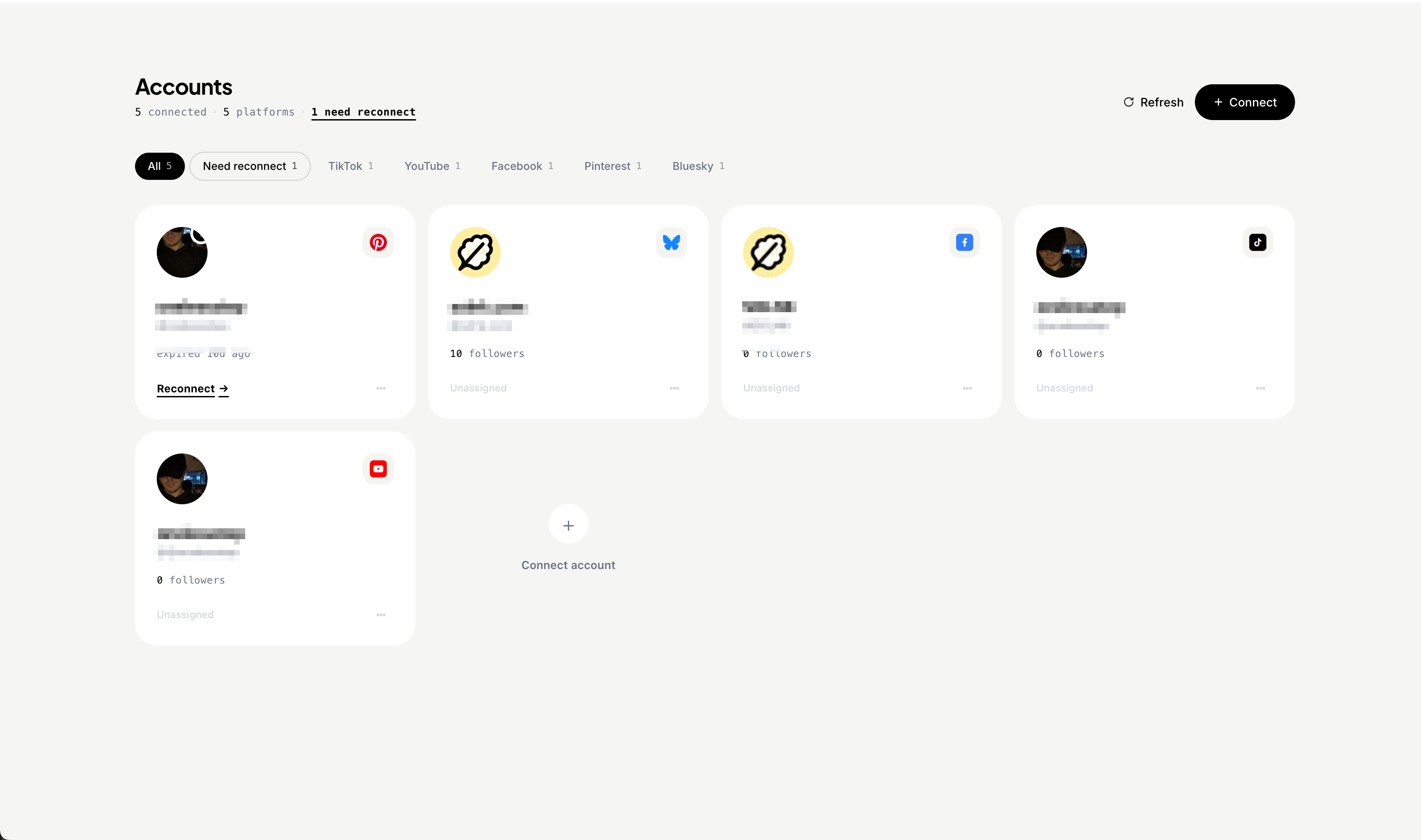
The Accounts page — five platforms connected to a single workspace, each labeled 'Unassigned' until you delegate it.
The first time it happens, you tell yourself it was a fluke. You meant to post Client A's product tease, but you were logged into Client B's Instagram in another tab, and now Client B's followers are confused. You delete it within thirty seconds. Client A never sees. Nobody notices.
The second time it happens, you stop telling yourself anything.
If you've been running social media for more than one brand — your own plus a freelance client, an agency book with five clients, a matrix of four niche IG handles — you already know this fear isn't really about the post. It's about the structural fact that the wrong account is one click away at all times. Most social tools were built assuming one person, one brand. You're working in a world that broke that assumption a decade ago, and you're holding it together with browser windows and prayers.
Today we're shipping the thing we should have shipped a year ago: Team Workspaces.
What "Team Workspaces" Actually Means in Solnk
It's three mechanics, not a feature. We'll walk through each one in plain English.
1. Assigned accounts: members only see what you've handed them
When you invite someone to a team, you don't hand them the keys to every account. You assign specific social accounts to them — that one Instagram, that two TikToks, that LinkedIn. Their view, composer, and analytics scope narrow to what's been assigned to them. Anything you haven't explicitly assigned is invisible. Not "hidden behind a permission they could ask for" — invisible.
There's one piece of nuance worth knowing up front so you don't get surprised: groups behave the same way as accounts. If you put accounts into a group and assign the group to a specific member, only that member sees it. If you leave a group with no member assigned, every member of the team can see it — by design, for the cases where you actually want a "team-wide" group. Treat unassigned groups like a bulletin board. If you want isolation, assign.
So the rule, written out: a member sees an account if (a) it's assigned to them directly, or (b) it's inside a group assigned to them, or (c) it's inside a group with no assignment. Everything else is invisible.
This is the part that breaks the "I posted to the wrong account" failure mode. A freelance editor you've assigned to three of your fifteen clients literally cannot see the other twelve. There is no wrong account to post to.
Owners and admins see the full workspace. That's the only place "all accounts" lives.
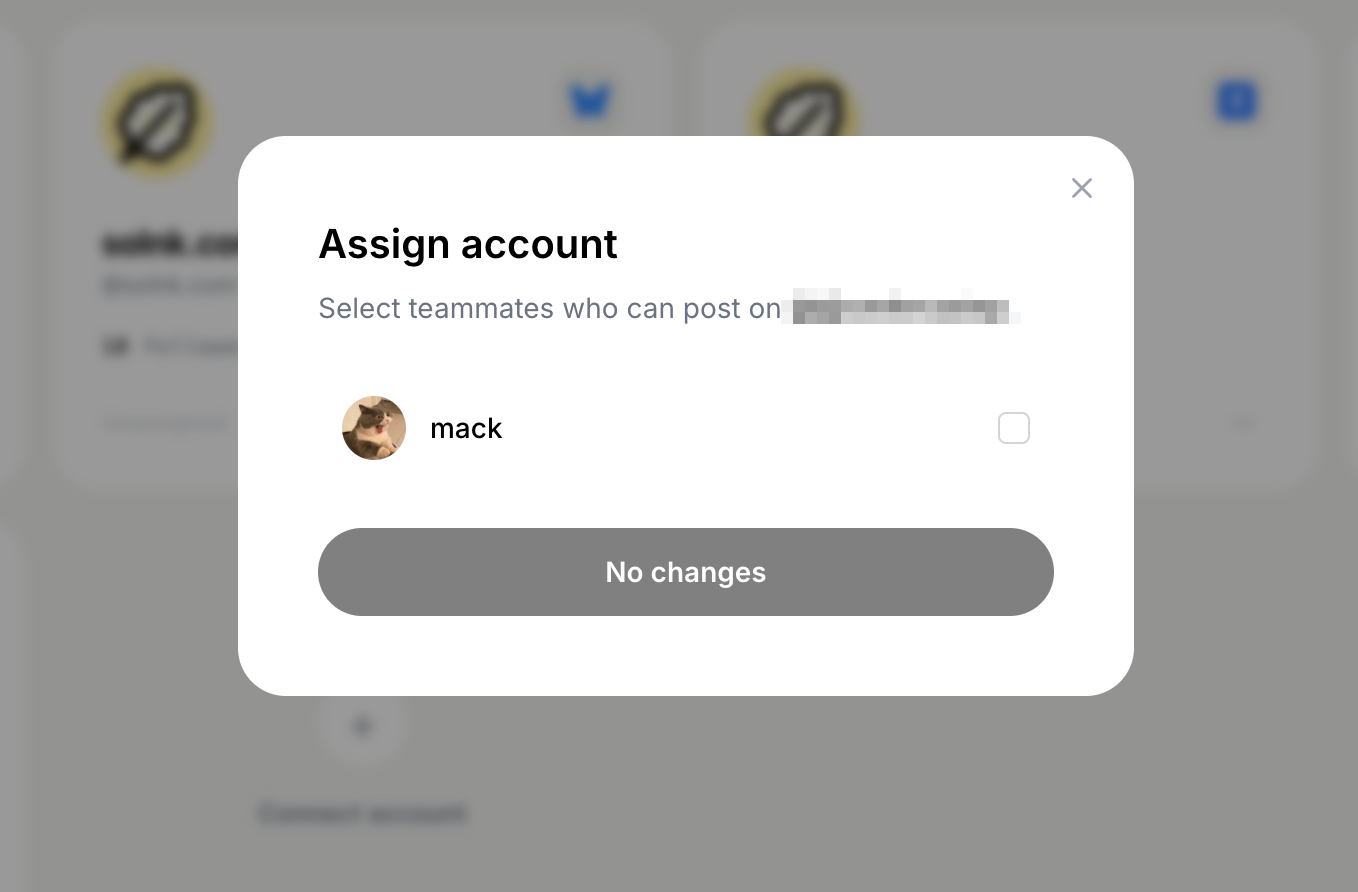
Assigning an account from the ⋯ menu on the Accounts card — once you tick a teammate, that account becomes visible only to them and to admins.
2. Optional approval: one toggle, not a workflow you can't turn off
Most team tools make approval a permanent state of being. Every member post enters a queue. Every queue means someone has to clear it. After a month, the bottleneck is the approver, not the creator, and your team gets quieter because nobody wants to keep nudging.
In Solnk, approval is a switch in Settings → Team. Off by default. Flip it on when you have an editor you haven't worked with long enough to trust, or a client who insists on reviewing every post. Flip it off when you don't.
When it's on:
-
Members create posts as drafts → status: awaiting approval
-
Owner and admin posts skip the queue entirely (your own scheduled content keeps flowing)
-
Approvals show up directly inside your Publishing view — same page you already check daily, no separate "approvals tab" that gets ignored
When it's off, members publish like any solo user. Same speed, no extra steps.
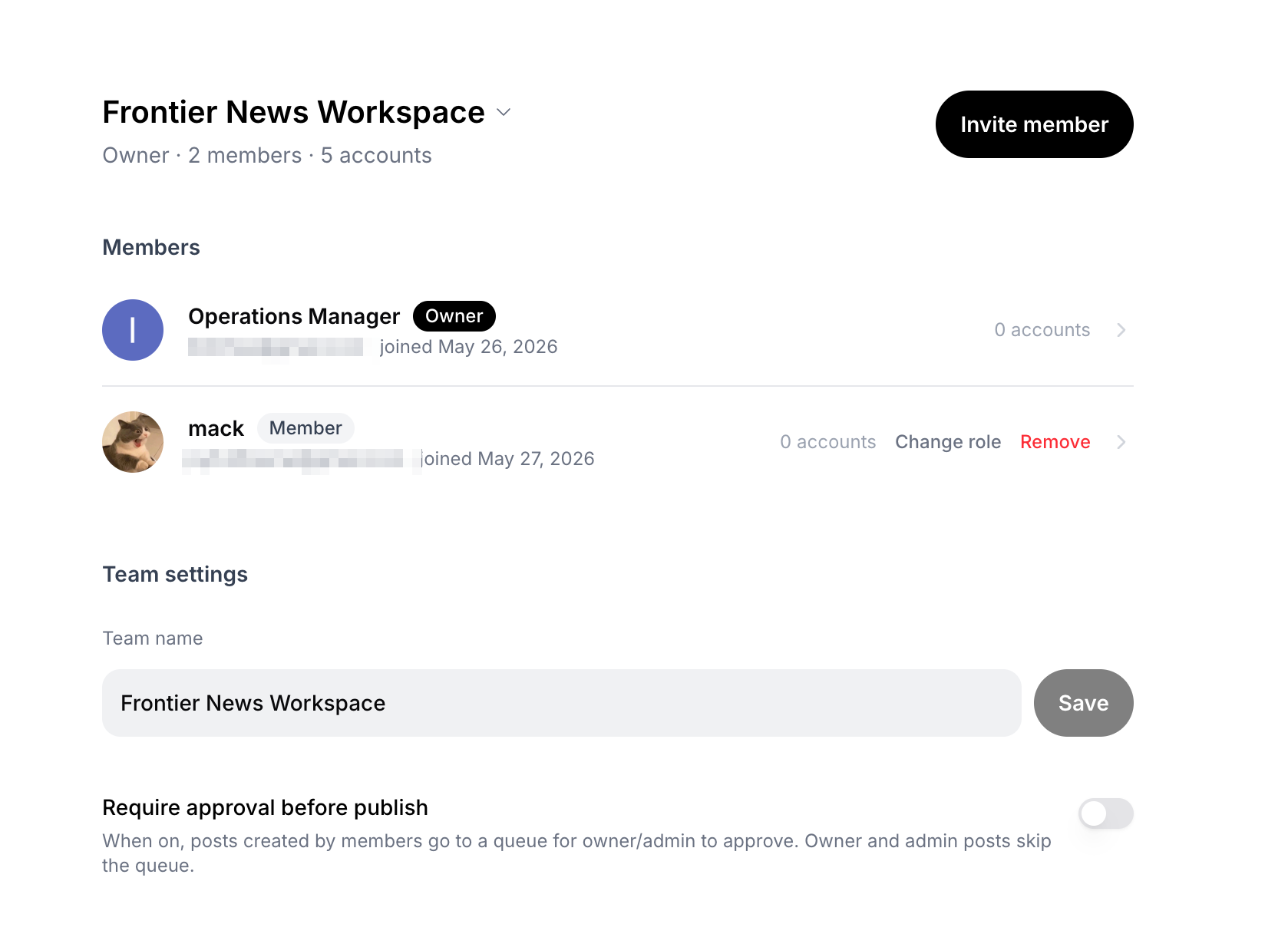
Settings → Team. Flip 'Require approval before publish' on or off in one click. Members, accounts, and the team name all live on this page.
3. No per-seat upgrade, no per-channel team tax
This is the boring one and also the one most people will care about most after running the numbers.
A lot of tools price team functionality as a tier upgrade — Buffer's Team plan, for example, is $10 per channel per month with unlimited users, but every channel has to be on Team to get team features. Ten channels means $100/month before annual discount. Hootsuite charges per seat on top of that. The math compounds.
Solnk doesn't sell a separate Team plan. Team Workspaces ships inside the Pro and Premium plans you already use, and the account quota stays where it is — the workspace owner's plan covers all accounts across all teams they own. Bring a teammate in: they don't pay anything. Bring three in: they don't pay anything either. Their free Solnk account just gets stitched to your team's resources for the duration.
The math: a 5-account workspace running on Pro stays $29/month regardless of whether one person or five people work in it. Same plan, more people moving through it.
Who This Actually Fixes a Problem For
Three groups. If you don't see yourself here, the rest of the post will be less interesting and I won't be offended.
The small agency, 3–20 clients. You've been running a shared Google Doc for content, a Loom for review, a calendar invite for approval, and a phone call for the panic when something publishes wrong. Each client wants their own approval rhythm and their own assets. Team Workspaces lets you spin one workspace per client (the owner can run multiple), assign your editor to just the clients they touch, and turn approval on for the clients who want it and off for the clients who don't.
The matrix operator running 4–10 niche accounts. You're one person — or you and a part-time VA — and your accounts are split across IG, TikTok, Threads, Bluesky. The wrong-account anxiety is highest here, because all your accounts are conceptually "yours" but operationally different. Assigning your VA to just the two TikTok niches they manage removes everything else from their screen, including from yours when you switch into "VA view" to check something.
The solo creator + collaborator pair. You write, your editor edits, you both post. You don't need a queue most days, but for sponsored posts where the brand has approval rights, you flip approval on for that team and the editor's drafts wait for your signoff.
How to Start in About 90 Seconds
You don't have to set anything up to start — every Solnk account already has a default team waiting in /settings/team. Here's the shape of the workflow:
-
Open `/settings/team`. Your default team is sitting there with your existing accounts already attached. If you're on Pro or Premium, an
Invite memberbutton appears in the top right. -
Send an invite. Type the email, pick admin or member, get a link that expires in seven days. Send it however you want — most people just paste it into Slack or Notion.
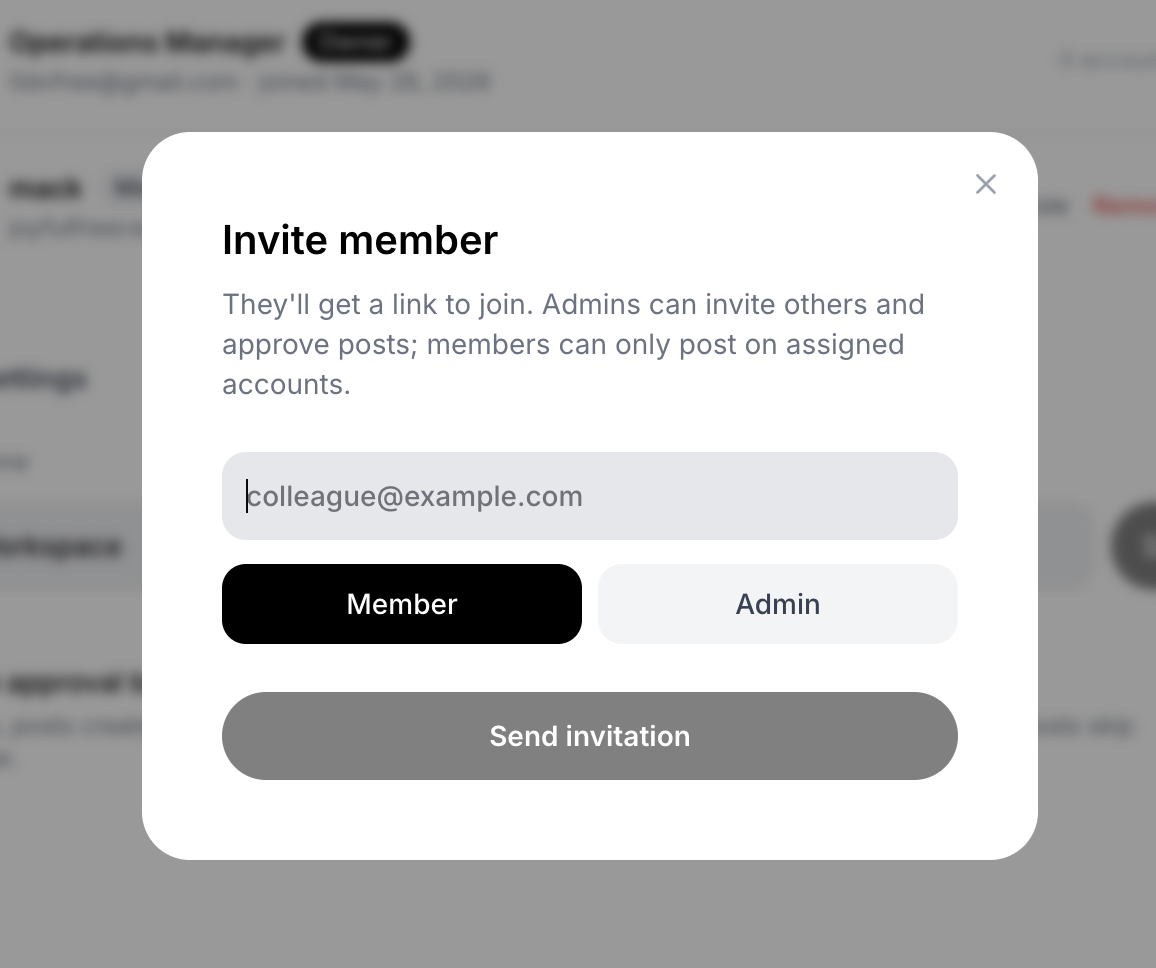
The invite modal — admin or member toggle, one input, one link to share. Members can only post on accounts you've assigned them.
-
(Optional) Assign accounts. Open
/dash/accounts, hover the account card you want to delegate, hit the⋯menu, chooseAssign, pick the teammate. That account now belongs to them in their view. -
(Optional) Turn on approval. Back in
/settings/team, flip Require approval before publish. Their drafts now route through your Publishing view. -
(Optional) Run multiple workspaces — Pro / Premium owners only. If you're on Pro or Premium, you can create additional teams from
/settings/team— one per client, one per brand. To swap between them, go back to/settings/team; the workspace switcher at the top of that page changes your entire context. (Free plan stays on the default team — that's enough for solo creators and most collaborator pairs.)
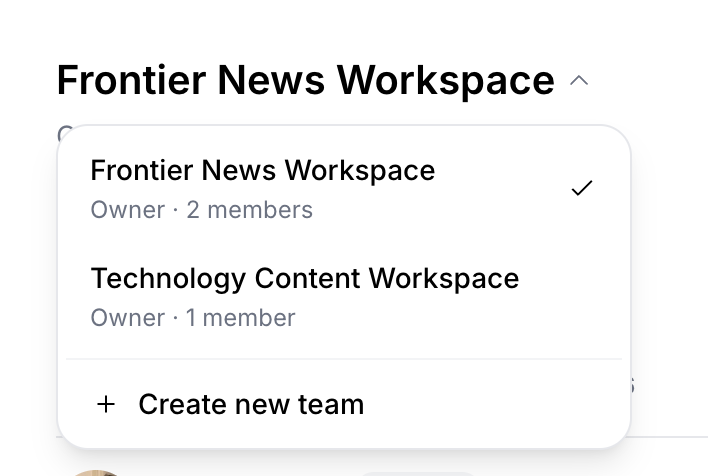
The workspace switcher on /settings/team — listed teams, an active checkmark, and a '+ Create new team' option at the bottom for Pro/Premium owners.
That's the full setup. There is no second wizard, no "team onboarding flow," no required Slack integration. If you ever want a teammate gone, the ⋯ menu on their row in the members list does it in one click.
What We Deliberately Didn't Build
A short list, because saying no is the only way the yes stays clean.
No cross-team posting. A single post must publish to accounts in one team. If you're managing Client A and Client B in separate workspaces, you can't accidentally tick a Client A account while drafting in Client B's context — we hard-block it at the API level, not just the UI. This is the part of the launch I'm proudest of, because it's the part you'll never see unless you try to break it.
No per-seat upgrade modal. We're not going to ask you to upgrade because you brought a third teammate in. Plans are priced on social accounts, not headcount.
No approval timer. Phase 1 doesn't auto-reject posts that have been pending for X days. Admins clear queues manually. If your team needs queue SLA, we'll add it when enough teams ask — most teams I've talked to find auto-reject more stressful than helpful.
No "owner can spy on member analytics for other clients." A member's analytics scope is their accounts. Admins see everything across the team — but not across teams they don't own. This is intentional: confidentiality between clients is a real legal posture for agencies, and we'd rather have to build "let me see everything" as an opt-in later than walk it back from "everyone sees everything" by default.
A Quick Comparison Where It Matters
I'll keep this honest. Solnk isn't always the right choice. Here's where the gaps are real:
| Question | Solnk Team Workspaces | Buffer Team plan |
|---|---|---|
| Price model | Inside Pro/Premium ($29 or $69/month). Account quota = owner's plan. | $10 per channel per month, billed channel-by-channel |
| Per-seat fee | None. Unlimited members on any team. | None. Unlimited members. |
| Member account visibility | Member sees only assigned accounts | Member sees all channels unless access level set per-channel |
| Approval workflow | Optional, single toggle per team | Built-in, on for everyone on Team plan |
| Multiple workspaces per owner | Yes (Pro/Premium) | Sort of — you organize by groups inside one workspace |
| Cross-team post block | Hard block at API level | N/A (one workspace) |
| Where approvals live | Inside Publishing view (no separate page) | Dedicated Drafts/Approvals tab |
If you're running 50+ channels, Buffer Team's flat per-channel rate may pencil out lower at scale. If you're running 3–15 accounts and want strict per-client isolation without a workflow you can't turn off, Solnk is what we built for you specifically.
The Honest Roadmap Sentence
Phase 1 is what's live today. We have a short list of follow-ups that we're not promising dates on: ownership transfer, group-level analytics overview, and a way to move a personal group into a team. These are real, and they're coming, but I'm not going to ship a roadmap calendar that ages into a list of broken promises.
What I will promise: every Phase 1 mechanism above — assignment, optional approval, no per-seat, cross-team block — is intended to be permanent. We're not going to A/B-test you out of these defaults.
One Last Thing
The reason wrong-account posting is the launch story isn't because we have data on how often it happens. It's because every matrix operator I've talked to in the last six months brought it up unprompted, and most of them had a story. Some of them had two. One had a story they wouldn't repeat on the record.
That kind of pattern doesn't show up in dashboards. It shows up in conversation, and only because the alternative — admitting you posted the wrong thing to the wrong audience — costs a client or a follower base.
If that's been quietly true for you too, Team Workspaces is now live in your account. Open /settings/team, invite someone, assign an account, and let the rest of your tabs go quiet.